
nosyd
A mobile device APP interface designed for robot petsitter
nosyd APP
The client - nosyd is seeking to launch a robot petsitter in the global market. This project aims to create a mobile device user interface that allows users to control the petsitter robot remotely. In the design process, I study the users and communicate with the client(class time zoom) in time, trying to let the software application meet both the client’s needs and users’ needs.
The functions I determined were most important were a live camera feed with the ability to take photos, feed, play with and talk to the cat. I also decided that a photo and video gallery with the ability to share on different social media and the ability to track the cat’s health and well-being was important.
SCREENS OF 5 KEY FUNCTIONS
These screens show five key functions of nosyd APP, they are health tracking function, live-deed function, home guide function, activity function, and photo library function.

Home Page

Activity Page


Library Page
Health Page
Live-feed Page
Wireflow - Photo editing & Sharing
This is a complete user wireflow to show how users can edit photos and then share them to socials.
Forward Navigation:

Backward Navigation:
Visual Identity
COLOR

When deciding on a colour palette, I aimed to choose something that represented comfort, homeliness and warmth as the app is intended to be used for people who are away from their home. It also represents the youth and vitality that pets possess. Orange is also a friendly and welcoming colour and is gender neutral, thus it will be engaging for a wide range of users.
TYPOGRAPHY
Typeface: Montserrat
Aa Aa

DESIGN PROCESS
Step 1: Make a to-do-list for the design
When I'm done with a step, I can mark it with a "done" marker to prevent me from missing some design steps

Step 2: Online Ethnography
An online ethnography research was conducted to better understand who our potential users are and what they need. We observed customer reviews of competitor products and cat-related health and toy products on Amazon to understand the frustrations and likes of currently available pet products. We also observed posts and replies made on the Reddit forum CatAdvice within the last two years. We also did some informal interviews with some cat owners. We discuss the conveniences and drawbacks of their current pet sitter and what their expectation if there is a new robot petsitter is coming.


Online Ethnography Research
Source: Reddit

Online Ethnography Research
Source: Amazon
Key Insight of the Online Ethnography
Users of pet cameras highly value easy set-up and easy to use user interface.
Users found that their life has been made easier with a pet feeder.
Being able to interact with their cat while they’re at work is a motivating factor for users of pet cameras and robots.
Being able to have a fixed eating schedule for their cats is very important to some cat owners.
Many cat owners worry about what to do with their cat when they’re away and if their cat will be safe alone.
Many cat owners don’t like boarding their cats as they don’t trust them.
A lot of cat owners report that having a pet sitter can be a stressful experience for their cats.
Student cat owners who live by themself worry about leaving their cats alone while they’re in class and not being able to play with them.
People use automatic/scheduled feeders for their cats when they go on trips.
Step 3: User Needs
Job-to-be-done model and online ethnography result
to expect users' needs

Step 4: User Profile

Step 5: User Persona

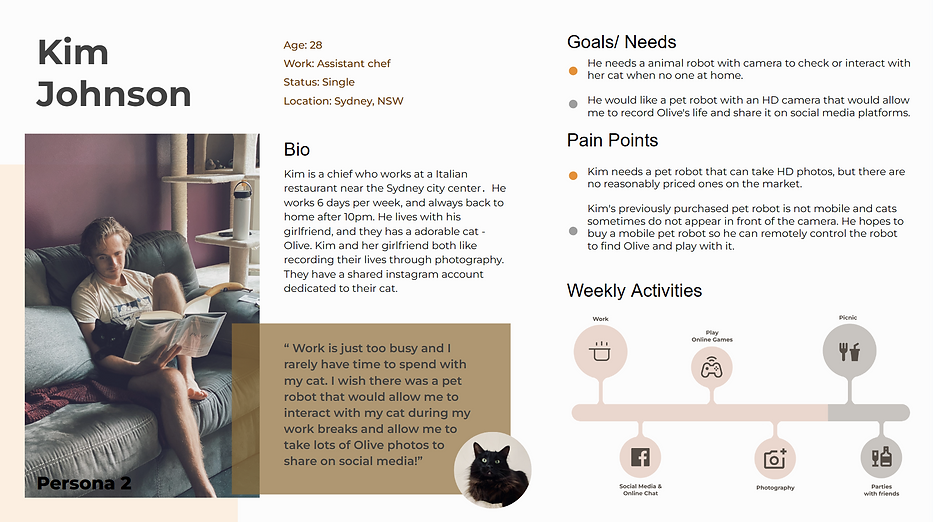

Step 6: Competitor Analysis

Step 7: Handsketched Wireframes
HANDSKETCHED WIREFRAMES
Initial sketches

Home
Small screen of the live feed footage - becomes full screen when tapped - change the buttons below to image based
Scrolls down to show different levels of activity/sleep/hunger. Change this to its own separate screen - health function.
Live Feed
Move all the different functions to one corner to make it less confusing and easier to click.
Add option to switch between horizontal and vertical view.
Media Galleries
Media Galleries page collect and display the media content filmed by users. The 24-hours’ recording can also be found here. Users can browse images and videos or delete them on this page.

Activity
A Screen to view pet's everyday activities, the monitiring function of the petsitter can capture pet's activities such as eat, sleep, live-feed.
The users can view each day's activities via changing the date on the top- right canlendar button.
Live Feed - Full Screen
A full-screen mode of Live Feed- Camera. Users can enjoy a better and bigger view of live view. Users can shoot a photo or video on this page. Chat button and toss snacks are also include on this page. Else, Users can press the “zoom in” button at the top-right corner to go back to a small screen Live Feed page.

Live Feed
Move all the different functions to one corner to make it less confusing and easier to click.
Add option to switch between horizontal and vertical view.
Live Feed - Full Screen
This is the full-screen Live-feed feature page. The user can switch different functions on the top right corner.
In this sketch, it shows the microphone speaking function. Tap the micro button to speak to your pet, tape again to silence the microphone.
Live Feed - Feeding
Tapping the feed button causes pop up buttons to appear - user can choose to feed now or schedule. Add option to throw snack.

Live Feed - Camera
This page is used for robot control. It shows a small screen of live video. Users can shoot a photo or video on this page. Else, Users can press the “Zoom Out” button at the left-down corner of the video playing section to enter the full-screen mode.
Live Feed - Photo Gallery
Media Galleries page collect and display the media content filmed by users or surveillance camera. Users can browse images and videos or delete them on this page. Users can also choose a certain image to edit or check its information.
Photo Sharing
Sharing selected photo other media platforms such like Instagram, Facebook, e-Mail, or message.
HANDSKETCHED WIREFRAMES
Final sketches
In this round, we changed the interface layout of the key features. These changes are based on the requirement of the client. Also, two complete user flows(Feeding & Photo Sharing) have been finished.

Home
Users will not see the view from robort camera. Instead, the live-view will presented as a picture, tape to access to the full-screen of Live-Feed interface.
Add a feature of the "F&Q"Communties" on this page. It allows users to have more fun with the software, become more active and increase their loyalty.
Photo Gallery
Added more buttons at the bottom for navigating to more features. Users can easily view their favorite media clips and find the most recent photos in their collection
Activity
Changed the button and the way to select the date to make the interface more simple and beautiful.
At the same time, a button to set the Monitor has been added in the upper right corner. Users can tap this button to set when the app will send push notifications to users

Health Track
Health Track function interface has been added. In this interface, users can view their pet's weight, mood, heart rate, body temperature, etc. The data for the charts is obtained from Monitor and user input.
Live Feed - Full Screen
The previous interface setup made the entire bottom of the page look very crowded, so I changed the layout of the buttons on the right. This layout now makes it easier for users to use
HANDSKETCHED WIREFRAMES - User Flow of the Live Feed function
Final sketches

Live Feed - Feeding
Tapping the feed button causes pop up buttons to appear - user can choose to feed now or schedule. Add option to throw snack.
Auto Feeding
New page when “schedule is selected in feeding function.
A home button top right to easily get back home. A plus button next to “create new schedule”
On/off switch next to each saved schedule so it's easier to turn them on/off
New Feeding
Add option to name the new schedule
Change the “on” indication next to the “Set” text to an on/off switch to easily toggle between
Add option to add multiple feeding times in one schedule
Check Feeding
Users can now see their all saved Feedings. They can active or turn off these feedings using the toggle bar.
HANDSKETCHED WIREFRAMES - User Flow of the Photo Sharing
Final sketches

Photo Gallery
View A Selected Pic
Edit Mode
Photo Sharing
Added more buttons at the bottom for navigating to more features. Users can easily view their favorite media clips and find the most recent photos in their collection
Added more choices below. User can choose to share the photo directly or edit it in the app. In the meantime, the user can see the date the photo was taken, and find more information about this photo using the "i"button on the top right corner.
A full-screen editing board for users to edit this photo with different tools. Tools conclude with “Draw”, “Add Filters”, “Add Tags”,” Smear mosaic”, “Rotation”.
After editing, users can click the "share" button to share edited images on different platforms or save the image's final version into "Photo". Users can also choose to use or don't use the app's watermark on the image.
Step 7: Low Fidelity Wireframe


